

This guide covers creating passes via CSV upload in the PassEntry Dashboard. If you want to create passes programmatically or integrate bulk issuance into
automated workflows, see the Batch Pass Creation API documentation.
Creating a batch via CSV
Go to the Bulk Operations section and click Create via CSV. Then create a new batch. Optionally enter a batch name, and select the pass template you want the passes to be created under.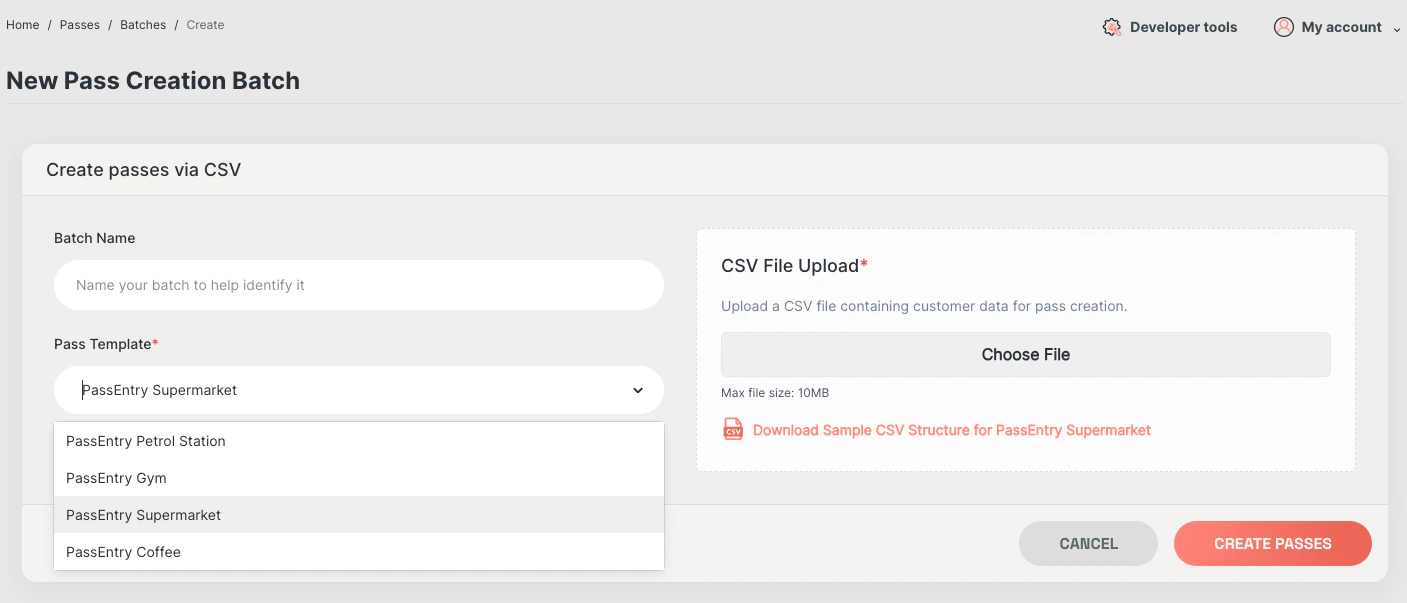
Configuration
Fixed headers
For more information on the functionality of each field, please refer to the API Reference.| Column Name | Description | Required? | Example | Type |
|---|---|---|---|---|
| ext_id | External ID for the pass | Yes | Pass12345 | Text (Any) |
| group_tags | Comma separated tags to group passes | No | summer_offer_24 | Text (Any) |
| nfc_enabled | Boolean to enable NFC | No | true | Boolean (true or false) |
| nfc_source | Source of NFC data | No | extId | Text (extId or uuid or custom) |
| nfc_custom_value | Custom value for NFC, nfc_source must be set to custom | No | summer_20_off | Text (any) |
| barcode_enabled | Boolean to enable barcode | No | true | Boolean (true or false) |
| barcode_type | Type of barcode | No | qr | Text (qr, code128, aztec or pdf417) |
| barcode_source | Source of barcode | No | extId | Text (extId, uuid or custom) |
| barcode_value | Value for the barcode, barcode_source must be set to custom | No | abcd12345 | Text (Any) |
| barcode_display_text | Boolean to display barcode value as text | No | true | Boolean (true or false) |
| expires_at | Expiration date and time for the pass | No | 2024-08-14T18:12:11Z | Datetime in iso8601 format |
| override_background_color | Override the background colour of the pass. Restrictions apply depending on device and template type | No | #000000 | Text (hex colour code) |
| override_label_color | Override the label colour of the pass. Restrictions apply depending on device and template type | No | #FFFFFF | Text (hex colour code) |
| override_text_color | Override the text colour of the pass. Restrictions apply depending on device and template type | No | #FFFFFF | Text (hex colour code) |
| override_banner_image_asset_id | UUID of a processed Image Asset to use as the banner image | No | f47ac10b-58cc-4372-a567-0e02b2c3d479 | Text (UUID) |
| override_logo_image_asset_id | UUID of a processed Image Asset to use as the logo image | No | f47ac10b-58cc-4372-a567-0e02b2c3d479 | Text (UUID) |
| override_thumbnail_image_asset_id | UUID of a processed Image Asset to use as the thumbnail image (generic passes only) | No | f47ac10b-58cc-4372-a567-0e02b2c3d479 | Text (UUID) |
Template override columns require template overrides to be enabled for your organisation. Image assets must be uploaded and fully processed before they can be referenced by UUID. See the Image Assets guide for details.
Dynamic headers
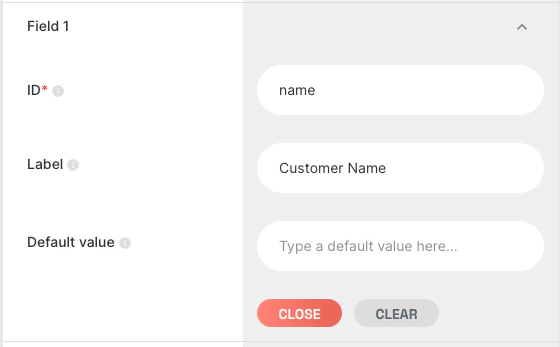
Each template can have custom fields, which you identify and set via dynamic headers. When you create a template, you set anID for each field.
Target that field in your CSV by including the prefix passfield_ followed by your template ID.
Example:
In your pass template, you’ve chosen to display Field 1 as “Customer Name”, and given it the ID of “name”.
Then, for each row in your CSV, you’ve entered a different name, to correspond with the data downloaded from your system.
In which case, your CSV would need to have a row called passfield_name
Special characters and markdown
CSV files that include special characters (commas, quotes, or line breaks) — or embedded HTML or markdown content — need careful formatting so fields parse reliably. Follow these rules:- Commas (
,): Wrap the entire field in double quotes ("). - Line breaks (
\n): Wrap the entire field in double quotes ("). - Double quotes (
") inside fields: Use double quotes around the field, and escape inner quotes by doubling them (""). - Markdown or HTML: Use double quotes around the full field, and use single quotes inside HTML attributes to avoid quote conflicts, or escape double quotes if needed.
This will ensure that the special characters are handled correctly, and the markdown is rendered as expected.
Results
Once you’ve uploaded your CSV, you can track the progress of your batch on the Passes page.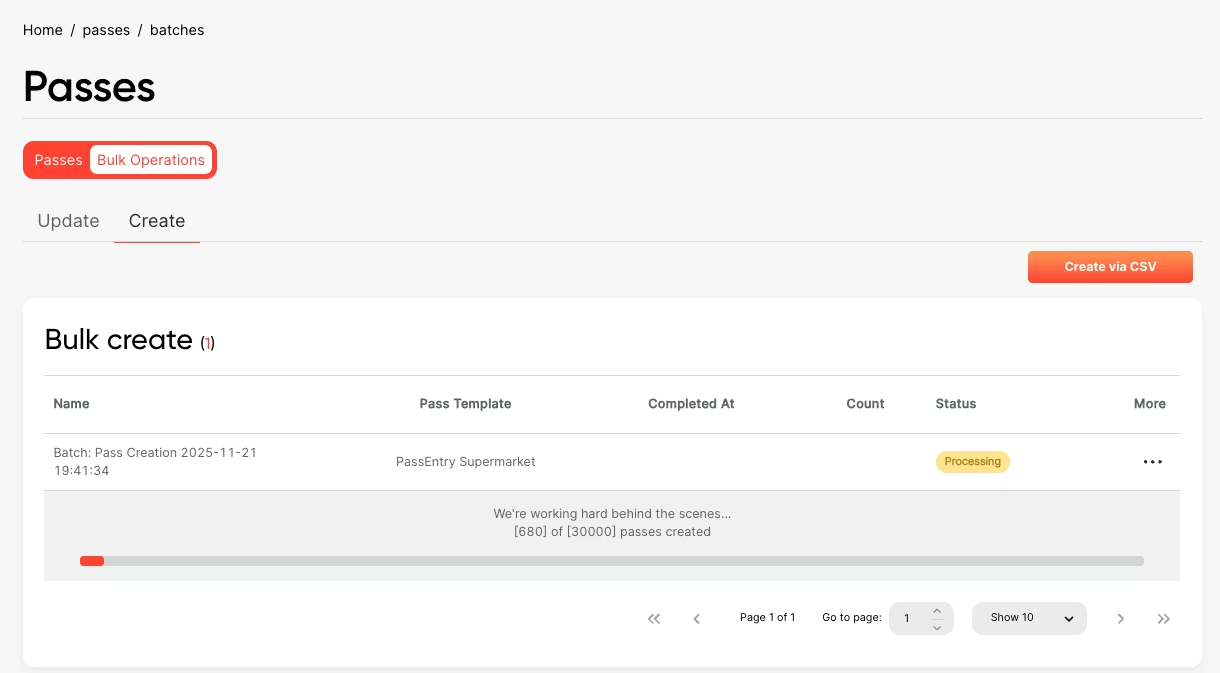
Retrieving download URLs via the API
If you created the batch through the Create Passes Batch API rather than the dashboard, follow the same result flow programmatically:- Poll Show Batch with the batch
iduntilstatusissuccessful. - Read the
resultCsvUrlfield from the response and download the CSV. - Each row contains
ext_id,uuid, anddownload_urlfor the created pass.
https://download.passentry.com/download?pass={uuid}, so you can also construct them directly from a pass UUID returned by Show Pass under data.attributes.downloadUrl.