Images
Design plays a big role in how your passes are perceived in Apple Wallet and Google Wallet. Using the right image formats, sizes and layouts ensures your passes look sharp, load quickly and behave consistently across devices. This guide walks through image requirements and design best practices for both platforms.Image requirements and placement can vary depending on the pass template type. For more details, see the Pass Template Types Explained guide.
Best Practices
When uploading images, please ensure they’re in thePNG format, and that they’re of a high quality.
We recommend compressing images using Squoosh, and OxiPNG.
We accept images as direct URLs, or as base64 encoded data.
When using base64 encoded data, please ensure the data is URL safe.
When using direct URLs, please ensure the URL is publicly accessible.
Use different images for each platform, and overlay text with instructions on how to get to the back of the pass.
We validate the image format and size when you upload an image.
Shared Images
To facilitate the creation of passes, we accept images that are shared across multiple platforms. Please note that in some cases, images may be cropped or resized to fit the platform’s requirements, so for best results, we recommend uploading variants optimized for each platform. These are:Apple Images
Banner

Logo


Icon

iOS devices cache the notification icon, so if you update the icon, it may take some time until the new icon is displayed.
Thumbnail

Google Images
Banner

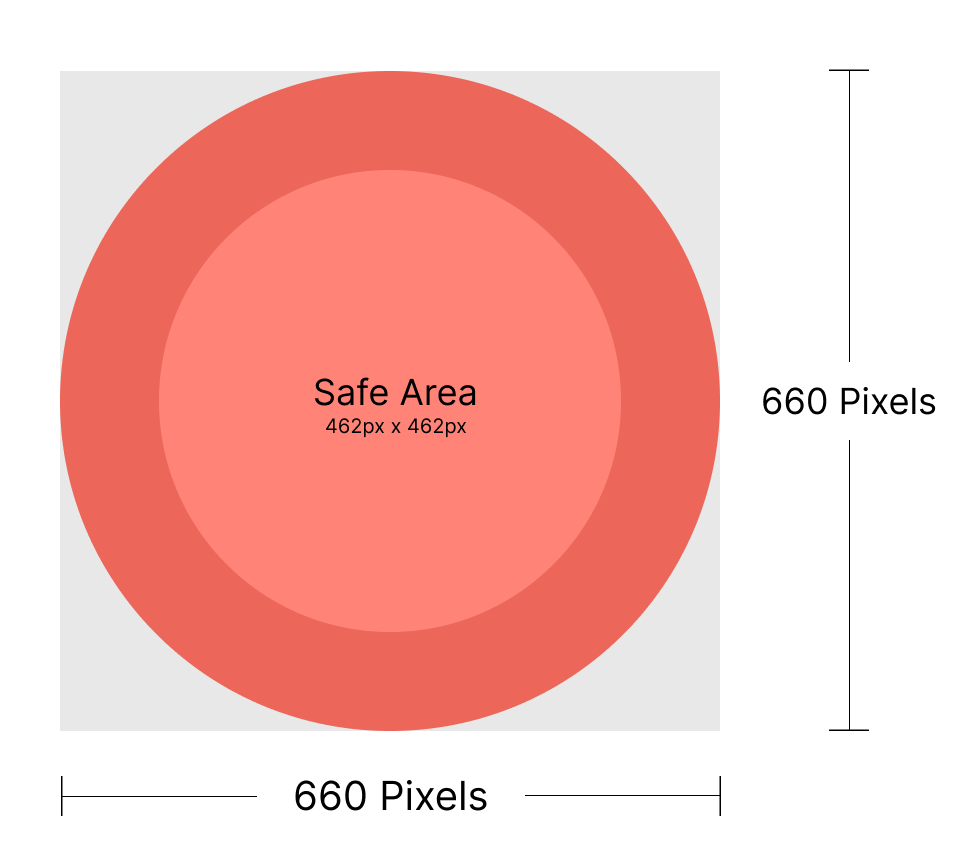
Logo

PassEntry Watermark