> ## Documentation Index
> Fetch the complete documentation index at: https://docs.passentry.com/llms.txt
> Use this file to discover all available pages before exploring further.
# Design Guide
> Learn how to design high-quality Apple Wallet and Google Wallet passes with the right image formats, sizes and platform-specific best practices to ensure your passes look sharp and consistent across devices.
# Images
Design plays a big role in how your passes are perceived in Apple Wallet and Google Wallet. Using the right image formats, sizes and layouts ensures your
passes look sharp, load quickly and behave consistently across devices.
This guide walks through image requirements and design best practices for both platforms.
Image requirements and placement can vary depending on the pass template type. For more details, see the [Pass Template Types Explained](/documentation/pass-template-types-explained) guide.
## Best Practices
When uploading images, please ensure they're in the `PNG` format, and that they're of a high quality.
We recommend compressing images using [Squoosh](https://squoosh.app/), and OxiPNG.
We accept images as direct URLs, or as base64 encoded data.
When using base64 encoded data, please ensure the data is URL safe.
When using direct URLs, please ensure the URL is publicly accessible.
Use different images for each platform, and overlay text with instructions on how to get to the back of the pass.
We validate the image format and size when you upload an image.
## Shared Images
To facilitate the creation of passes, we accept images that are shared across multiple platforms.
Please note that in some cases, images may be cropped or resized to fit the platform's requirements, so for best results, we recommend uploading variants optimized for each platform.
These are:
| Image | Size | Used for |
| ------ | -------------- | ------------------------------------ |
| Banner | 1125px x 432px | Apple Banner, Google Banner |
| Icon | 660px x 660px | Apple Notification Icon, Google Logo |
| Logo | 480 x 150px | Apple Logo |
## Apple Images
### Banner
 When present, it appears prominently on the Apple Wallet. Use it to wisely to promote your brand or product.
If including text, please ensure it's readable and contrasted against the banner image background.
**Sizing varies depending on template type:**
| Template Type | Banner Size |
| ------------------ | -------------- |
| Generic | Not present |
| Loyalty | 1125px x 432px |
| Event Ticket | 1125px x 294px |
| Loyalty Stamp Card | 1125px x 432px |
## Logo
When present, it appears prominently on the Apple Wallet. Use it to wisely to promote your brand or product.
If including text, please ensure it's readable and contrasted against the banner image background.
**Sizing varies depending on template type:**
| Template Type | Banner Size |
| ------------------ | -------------- |
| Generic | Not present |
| Loyalty | 1125px x 432px |
| Event Ticket | 1125px x 294px |
| Loyalty Stamp Card | 1125px x 432px |
## Logo

 Appears on the top left of the pass.
Ensure the logo is readable and contrasted against the background colour of the pass.
If you would like a logo narrower than 150px, simply add a transparent space to the right of the logo.
**Size:** 480px x 150px
## Icon
Appears on the top left of the pass.
Ensure the logo is readable and contrasted against the background colour of the pass.
If you would like a logo narrower than 150px, simply add a transparent space to the right of the logo.
**Size:** 480px x 150px
## Icon
 This appears on the notification tray when receiving notifications, or when the device is within a geofence.
**Size:** 87px x 87px
iOS devices cache the notification icon, so if you update the icon, it may take some time until the new icon is displayed.
## Thumbnail
This appears on the notification tray when receiving notifications, or when the device is within a geofence.
**Size:** 87px x 87px
iOS devices cache the notification icon, so if you update the icon, it may take some time until the new icon is displayed.
## Thumbnail
 Only appears in "Generic" template types.
This appears on the Apple Wallet when the pass is viewed.
**Size:** 270px x 270px
## Google Images
### Banner
Only appears in "Generic" template types.
This appears on the Apple Wallet when the pass is viewed.
**Size:** 270px x 270px
## Google Images
### Banner
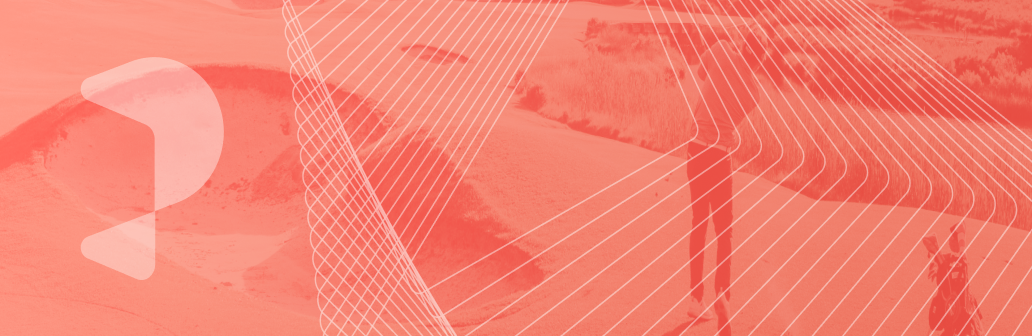 When present, it appears prominently on the Google Wallet. Use it to wisely to promote your brand or product.
If including text, please ensure it's readable and contrasted against the banner image background.
**Size:** 1032px x 336px
### Logo
When present, it appears prominently on the Google Wallet. Use it to wisely to promote your brand or product.
If including text, please ensure it's readable and contrasted against the banner image background.
**Size:** 1032px x 336px
### Logo
 Although set with a 1:1 aspect ratio, it will be masked to fit a square shape.
When building your pass, ensure it has enough margin (15%) to fit into the safe area, otherwise it may be cropped when masked.
Although set with a 1:1 aspect ratio, it will be masked to fit a square shape.
When building your pass, ensure it has enough margin (15%) to fit into the safe area, otherwise it may be cropped when masked.
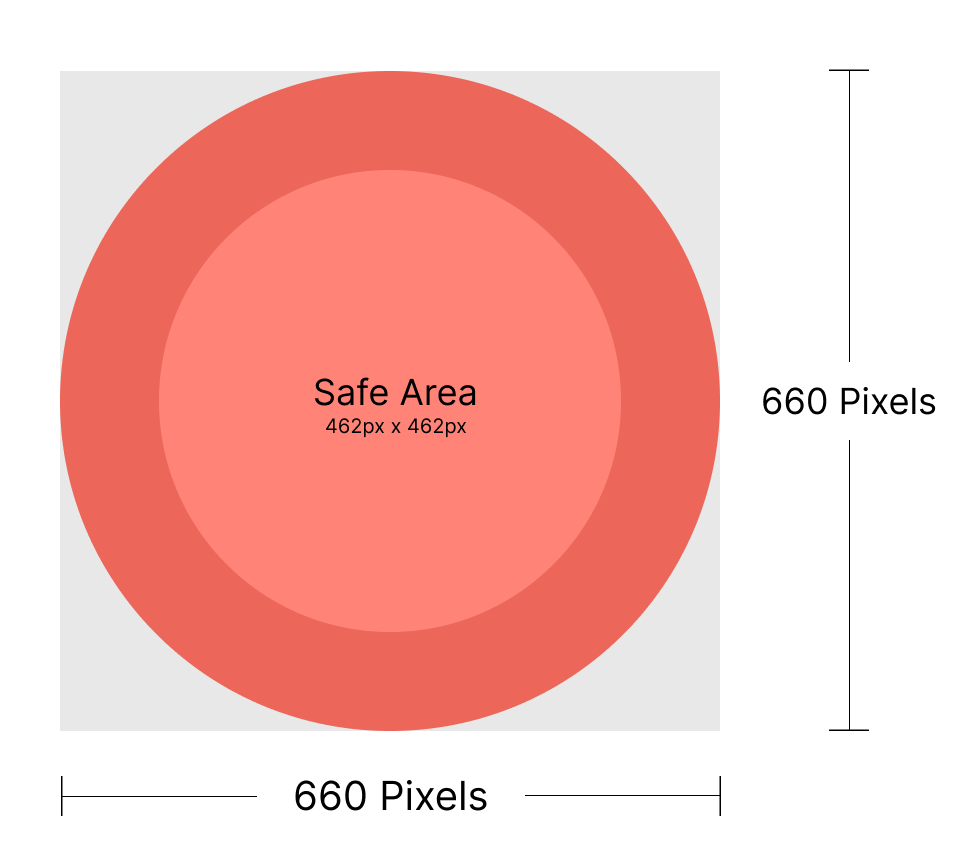 **Size:** 660px x 660px
## PassEntry Watermark
**Size:** 660px x 660px
## PassEntry Watermark
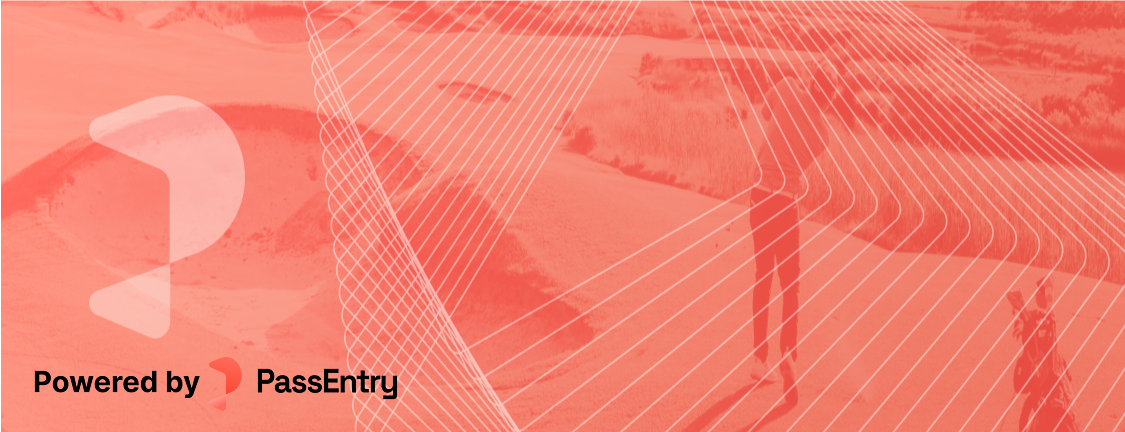

 When uploading a banner image, we automatically add a watermark to the image. You
can choose whether to use the dark or light version, and the position of the watermark.
To remove the watermark, contact your sales at PassEntry.
When uploading a banner image, we automatically add a watermark to the image. You
can choose whether to use the dark or light version, and the position of the watermark.
To remove the watermark, contact your sales at PassEntry.