 **Sample CSV**
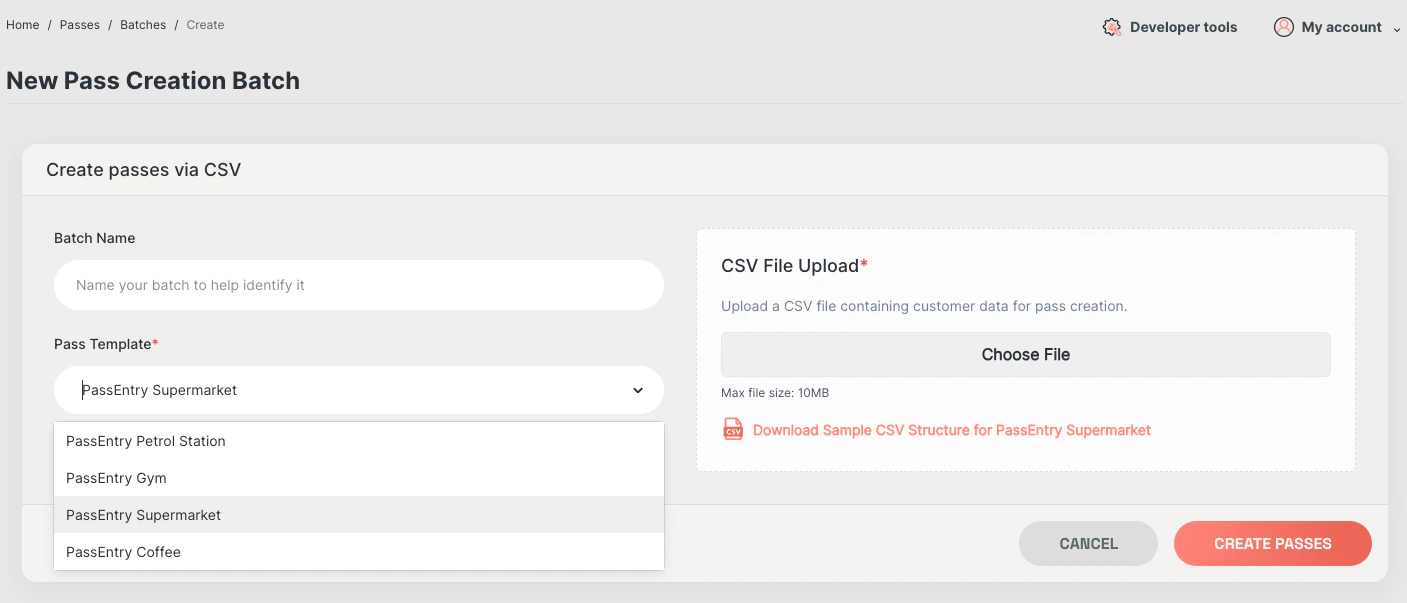
Once you've selected your Pass Template, you will be able to download a sample CSV, specific to your chosen Pass Template.
You can download an example CSV here: [HERE](/assets/passentry-pass-batch-creation-sample.csv)
## Configuration
**Sample CSV**
Once you've selected your Pass Template, you will be able to download a sample CSV, specific to your chosen Pass Template.
You can download an example CSV here: [HERE](/assets/passentry-pass-batch-creation-sample.csv)
## Configuration
| Column Name | Description | Required? | Example | Type |
|---|---|---|---|---|
| ext\_id | External ID for the pass | Yes | Pass12345 | Text (Any) |
| group\_tags | Comma separated tags to group passes | No | summer\_offer\_24 | Text (Any) |
| nfc\_enabled | Boolean to enable NFC | No | true | Boolean (true or false) |
| nfc\_source | Source of NFC data | No | extId | Text (extId or uuid or custom) |
| nfc\_custom\_value | Custom value for NFC, nfc\_source must be set to custom | No | summer\_20\_off | Text (any) |
| barcode\_enabled | Boolean to enable barcode | No | true | Boolean (true or false) |
| barcode\_type | Type of barcode | No | qr | Text (qr, code128, aztec or pdf417) |
| barcode\_source | Source of barcode | No | extId | Text (extId, uuid or custom) |
| barcode\_value | Value for the barcode, barcode\_source must be set to custom | No | abcd12345 | Text (Any) |
| barcode\_display\_text | Boolean to display barcode value as text | No | true | Boolean (true or false) |
| expires\_at | Expiration date and time for the pass | No | 2024-08-14T18:12:11Z | Datetime in iso8601 format |
| override\_background\_color |
Override the background colour of the pass.
[Restrictions apply depending on device and template type](../../../api-reference/v1/passes/create-pass#body-pass-template-override) |
No | #000000 | Text (hex colour code) |
| override\_label\_color |
Override the label colour of the pass.
[Restrictions apply depending on device and template type](../../../api-reference/v1/passes/create-pass#body-pass-template-override) |
No | #FFFFFF | Text (hex colour code) |
| override\_text\_color |
Override the text colour of the pass.
[Restrictions apply depending on device and template type](../../../api-reference/v1/passes/create-pass#body-pass-template-override) |
No | #FFFFFF | Text (hex colour code) |
| override\_banner\_image\_asset\_id | UUID of a processed [Image Asset](/api-reference/v1/image-assets/guide) to use as the banner image | No | f47ac10b-58cc-4372-a567-0e02b2c3d479 | Text (UUID) |
| override\_logo\_image\_asset\_id | UUID of a processed [Image Asset](/api-reference/v1/image-assets/guide) to use as the logo image | No | f47ac10b-58cc-4372-a567-0e02b2c3d479 | Text (UUID) |
| override\_thumbnail\_image\_asset\_id | UUID of a processed [Image Asset](/api-reference/v1/image-assets/guide) to use as the thumbnail image (generic passes only) | No | f47ac10b-58cc-4372-a567-0e02b2c3d479 | Text (UUID) |
 ### Special Characters and Markdown
When working with CSV files that include special characters such as commas, quotes, or line breaks—and especially when embedding HTML or markdown-style content—it’s important to format fields correctly to ensure they are parsed reliably.
Follow these rules:
* Commas (`,`): Wrap the entire field in double quotes (`"`).
* Line breaks (`\n`): Wrap the entire field in double quotes (`"`).
* Double quotes (`"`) inside fields: Use double quotes around the field, and escape inner quotes by doubling them (`""`).
* Markdown or HTML: Use double quotes around the full field, and use single quotes inside HTML attributes to avoid quote conflicts, or escape double quotes if needed.
For example:
| Desired Field Content | CSV-Compliant Value |
| ------------------------------------------ | ---------------------------------------------- |
| London, UK | "London, UK" |
| London\nUK (line break) | "London\nUK" |
| `Link` | `"Link"` |
| "Quoted Text" | """Quoted Text""" |
| `"Link"` | `"""Link"""` |
This will ensure that the special characters are handled correctly, and the markdown is rendered as expected.
## Results
Once you've uploaded your CSV, you'll be able to track the progress of your batch on the Passes page.
### Special Characters and Markdown
When working with CSV files that include special characters such as commas, quotes, or line breaks—and especially when embedding HTML or markdown-style content—it’s important to format fields correctly to ensure they are parsed reliably.
Follow these rules:
* Commas (`,`): Wrap the entire field in double quotes (`"`).
* Line breaks (`\n`): Wrap the entire field in double quotes (`"`).
* Double quotes (`"`) inside fields: Use double quotes around the field, and escape inner quotes by doubling them (`""`).
* Markdown or HTML: Use double quotes around the full field, and use single quotes inside HTML attributes to avoid quote conflicts, or escape double quotes if needed.
For example:
| Desired Field Content | CSV-Compliant Value |
| ------------------------------------------ | ---------------------------------------------- |
| London, UK | "London, UK" |
| London\nUK (line break) | "London\nUK" |
| `Link` | `"Link"` |
| "Quoted Text" | """Quoted Text""" |
| `"Link"` | `"""Link"""` |
This will ensure that the special characters are handled correctly, and the markdown is rendered as expected.
## Results
Once you've uploaded your CSV, you'll be able to track the progress of your batch on the Passes page.
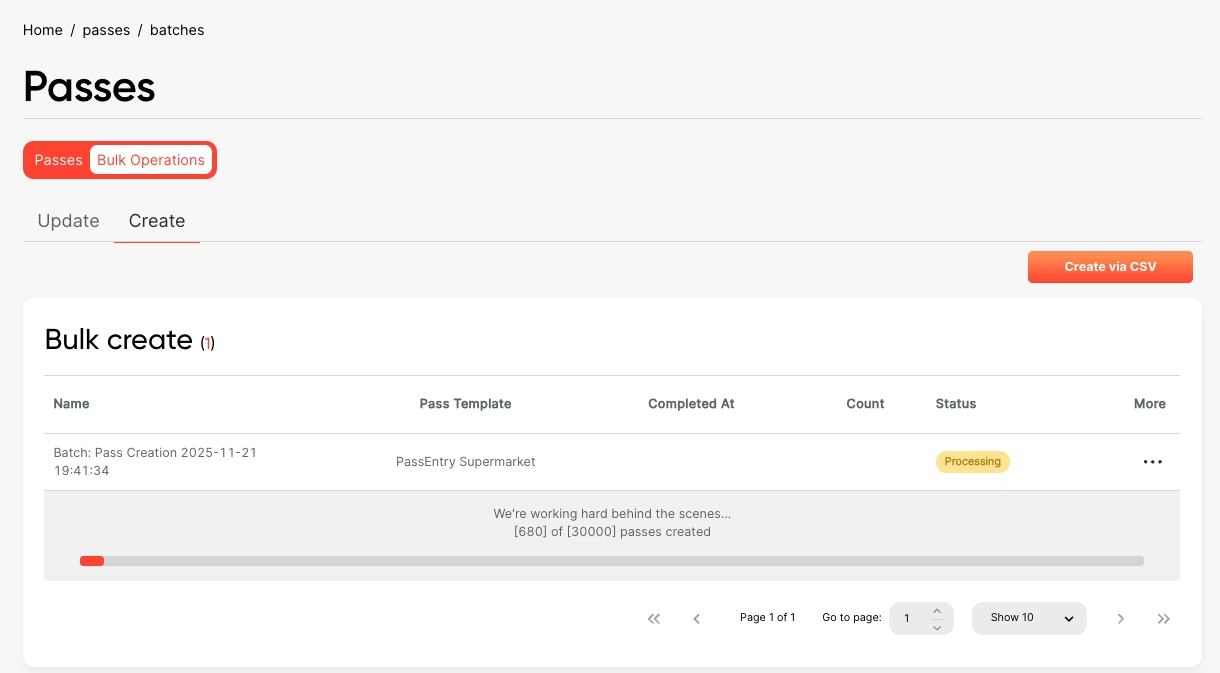 The batch will be listed in the "Batches" section, and you can click on it to see the progress of the batch.
If there are any errors, you'll be able to download a CSV of the errors that occurred, and once you've fixed them, you can re-upload the CSV to try again.
Once the batch is complete, you'll be able to download a CSV of the passes created in the following format:
| ext\_id | uuid | download\_url |
| --------- | ---------- | ------------------------------------------------------------------------------------------------------------------ |
| Pass12345 | 1234567890 | [https://download.passentry.com/download?pass=1234567890](https://download.passentry.com/download?pass=1234567890) |
| Pass12346 | 1234567891 | [https://download.passentry.com/download?pass=1234567891](https://download.passentry.com/download?pass=1234567891) |
## FAQ
### When should I use batch pass creation instead of the API?
Use CSV batch creation for one-off or infrequent bulk operations, such as migrations or campaign launches. For recurring or automated workflows, use the standard pass creation API to issue passes programmatically.
### What happens if some rows in my CSV fail?
If any rows fail, you can download an error CSV showing which rows failed and why. You can fix the errors and re-upload the CSV to retry only the failed passes.
### Is there a limit to how many passes I can create in one batch?
The maximum batch size depends on your plan and system limits. Large CSV files are supported, but extremely large batches may take longer to process.
The batch will be listed in the "Batches" section, and you can click on it to see the progress of the batch.
If there are any errors, you'll be able to download a CSV of the errors that occurred, and once you've fixed them, you can re-upload the CSV to try again.
Once the batch is complete, you'll be able to download a CSV of the passes created in the following format:
| ext\_id | uuid | download\_url |
| --------- | ---------- | ------------------------------------------------------------------------------------------------------------------ |
| Pass12345 | 1234567890 | [https://download.passentry.com/download?pass=1234567890](https://download.passentry.com/download?pass=1234567890) |
| Pass12346 | 1234567891 | [https://download.passentry.com/download?pass=1234567891](https://download.passentry.com/download?pass=1234567891) |
## FAQ
### When should I use batch pass creation instead of the API?
Use CSV batch creation for one-off or infrequent bulk operations, such as migrations or campaign launches. For recurring or automated workflows, use the standard pass creation API to issue passes programmatically.
### What happens if some rows in my CSV fail?
If any rows fail, you can download an error CSV showing which rows failed and why. You can fix the errors and re-upload the CSV to retry only the failed passes.
### Is there a limit to how many passes I can create in one batch?
The maximum batch size depends on your plan and system limits. Large CSV files are supported, but extremely large batches may take longer to process.